
Online Booking & Job System Guidelines
A quick, easy guide to booking, registering, and managing your jobs with Foxtone.

How to Book Your Appointment
1. Select your preferred date, time, and location from the available slots above (e.g., Mon, 20 Oct 2025 – Ipswich).
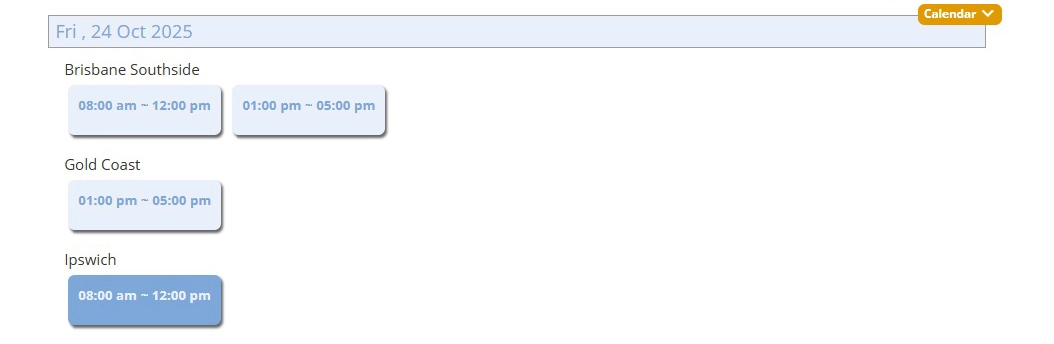
2. Once selected, your chosen appointment details will appear automatically in the form below.

3. Fill in your details, including your reason for appointment, contact information, and any notes.
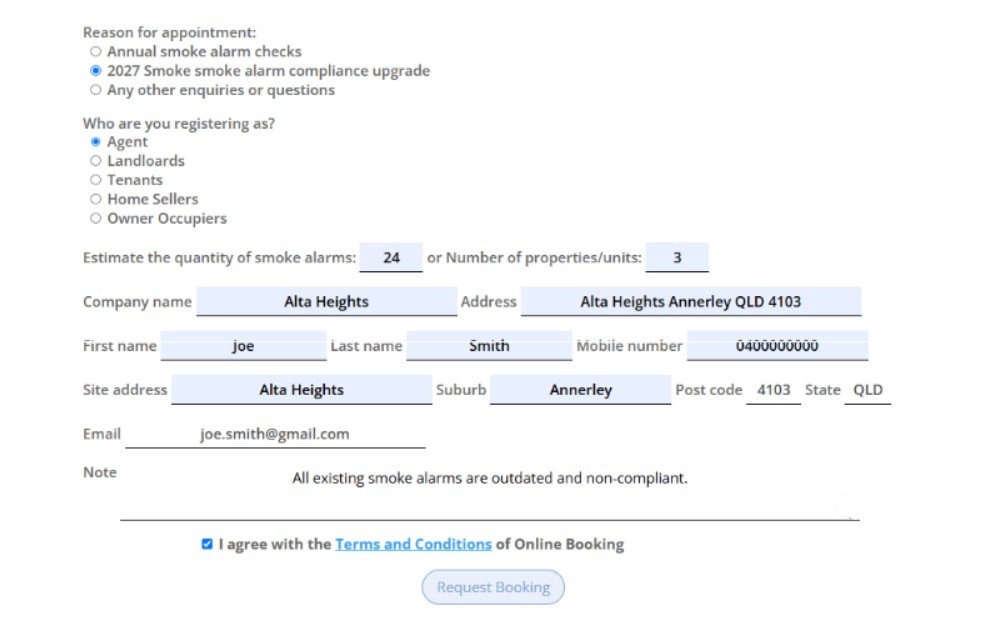
4. Review your information and ensure all required fields are complete.
5. Tick the box to agree to our Terms and Conditions.
6. Click Request Booking to submit your appointment.
7. You’ll then be redirected to a verification page.
a. Check your SMS or email for the verification code
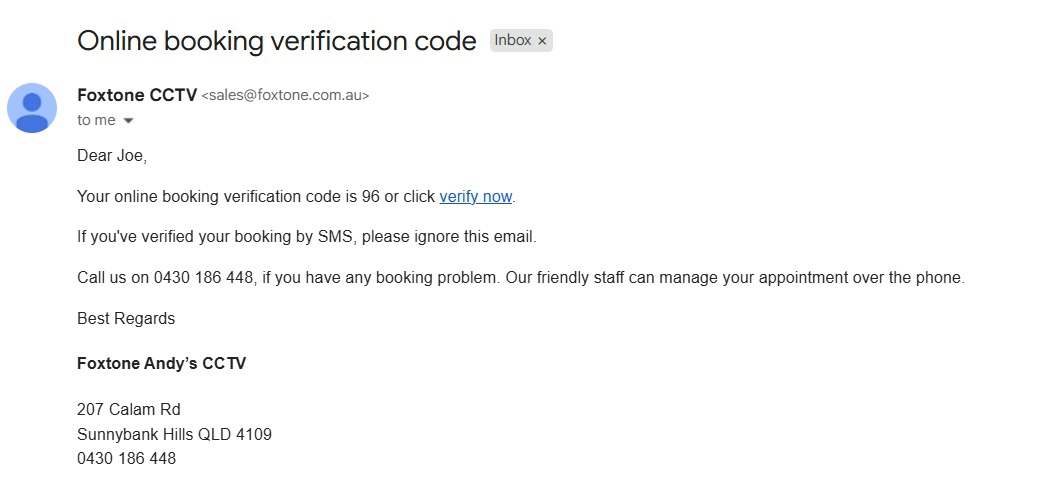
b. Enter the code (e.g., 96)
c. Click Submit to complete your booking.

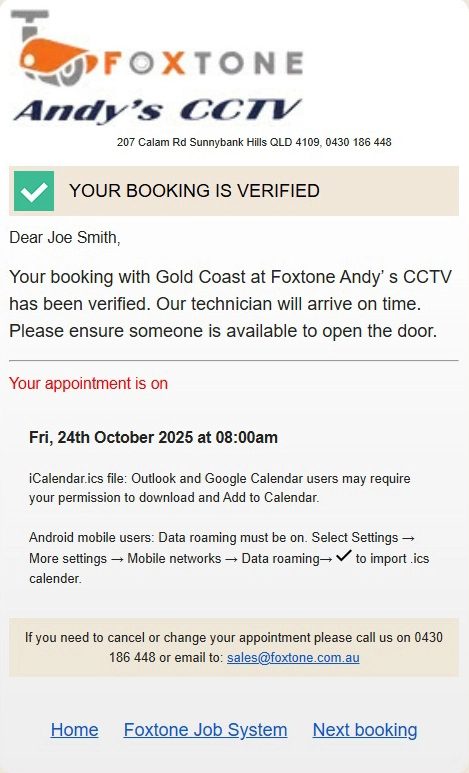
8. Once verified, your booking request will be confirmed.
How to Register
To view or update your requested job, please register for an account.
1. Enter your username and email address (e.g., Joe, smith.joe@gmail.com).
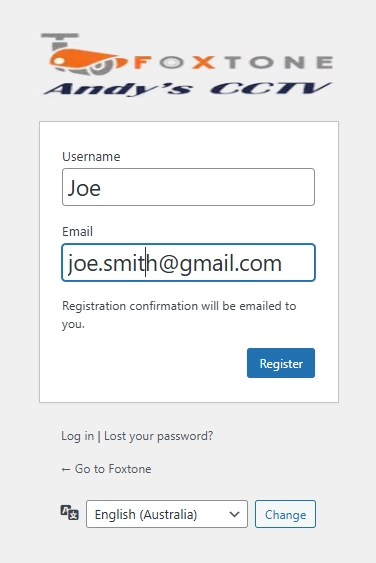
2. A registration confirmation email will be sent to you from Foxtone CCTV (sales@foxtone.com.au) with your login details.
The email will look like this:
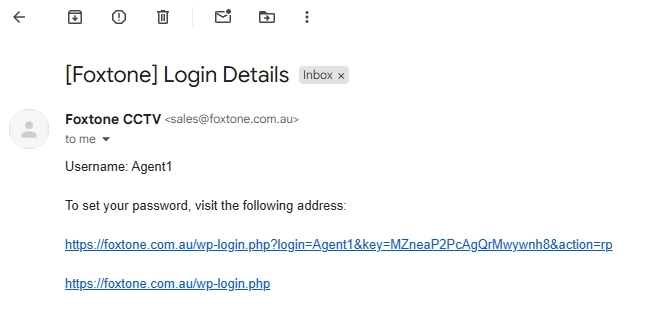
3. Click the link in the email to set your password.
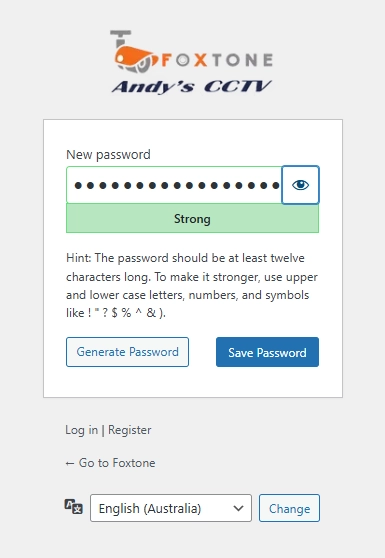
4. Once your password is set, you can log in anytime at https://foxtone.com.au/wp-login.php to track, view, or update your bookings.
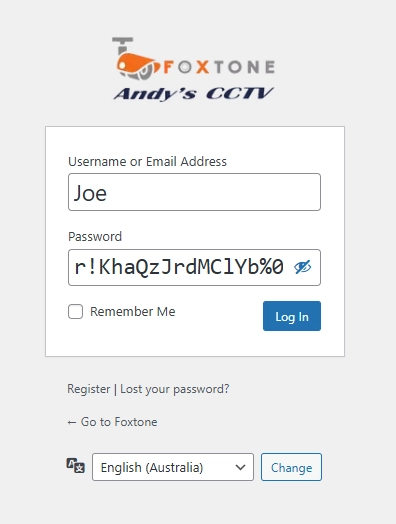
For convenience, the Login button is also located on the uppermost right corner of the website header, next to Get a Quote and above Contact Us. This allows you quick access to your job list.
How to Update your Job List
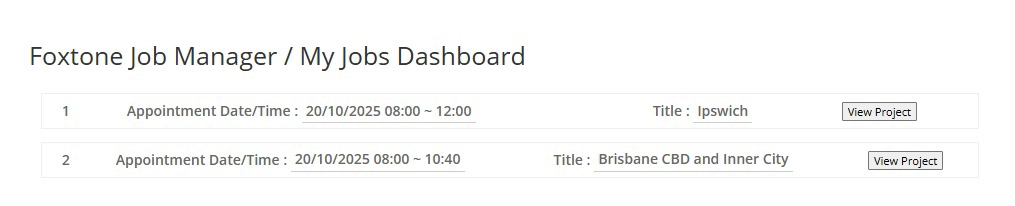
Once you’ve registered and logged in, you’ll be redirected to your Job List page. On this page, you’ll see your booking details displayed.
1. Locate the booking you wish to manage.
2. Click View Project next to the selected job to open or update your request.
After clicking View Project on your selected booking, you’ll be redirected to the Job Details page, which looks like this:
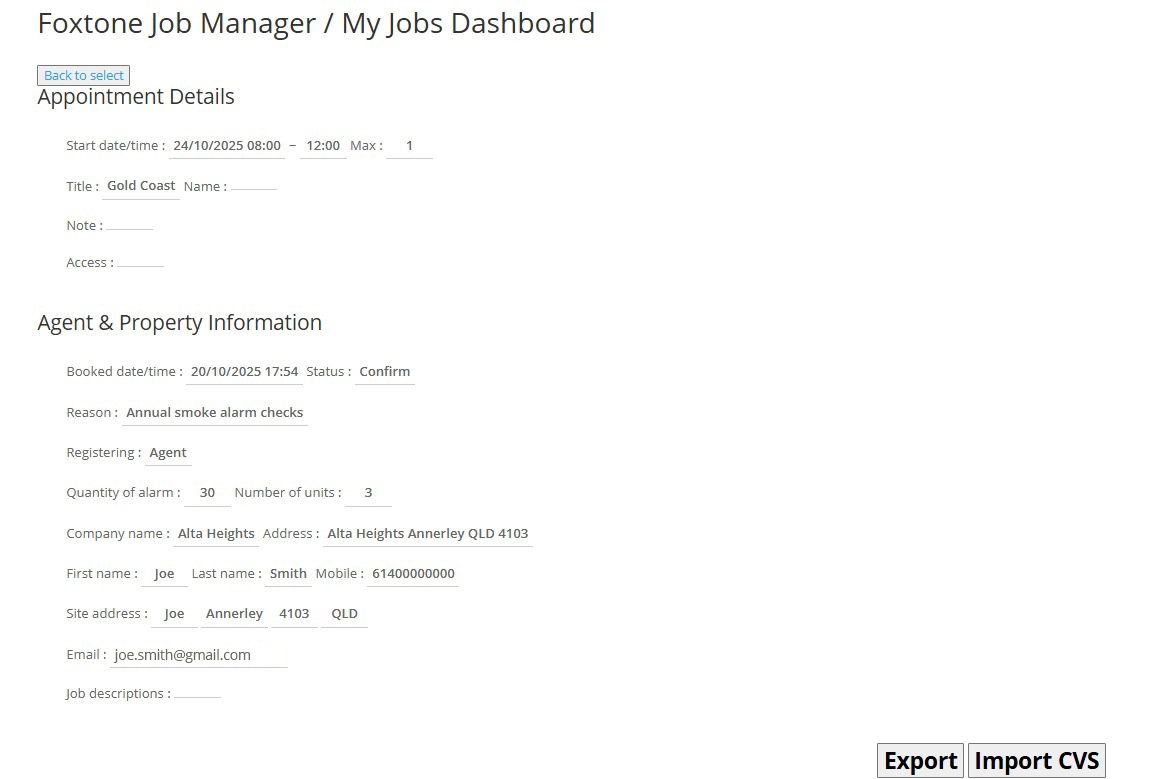
1. To add contact person information, click “Import CVS” to upload your contact details.

2. In the CSV input field, enter the following format: Contact_person,contact_email,contact_mobile,site_address,note,jobs_due_before (e.g., jack williams, w.s.jack@gmail.com, 0400200400, alta heights annerley qld 4103, 8 smoke alarms, 18/10/2025)
These details represent the tenant or homeowner information related to the booking.

3. You can also add multiple contact persons by entering one contact per line in the same format.
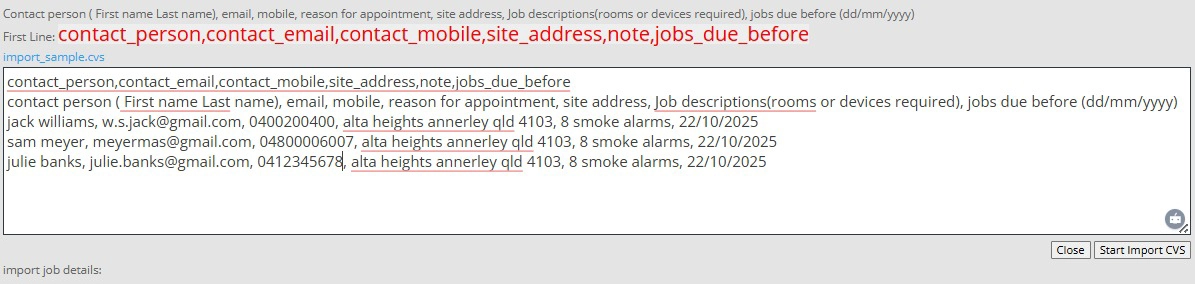
4. After entering all contact details, click Start Import CVS.
5. Once confirmed, the system will automatically insert the information into your tables:
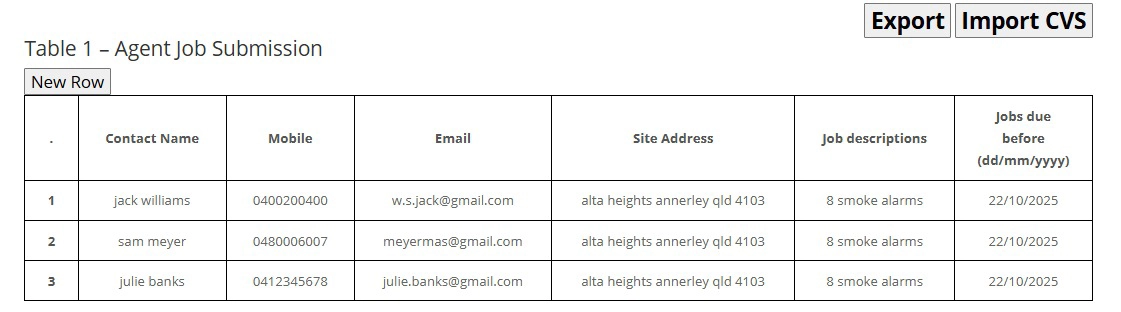
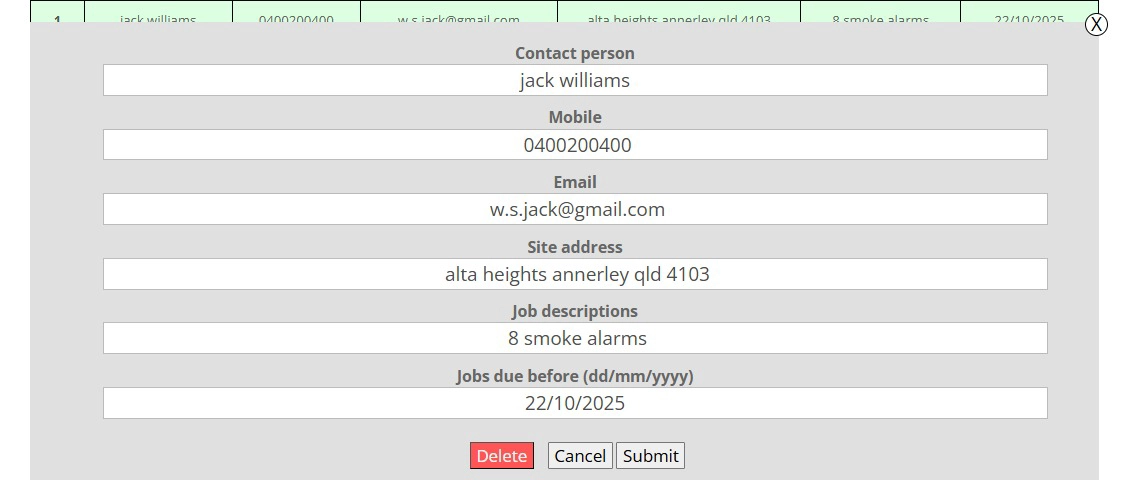
6. You can also edit contact and job details. Hover your cursor over the row you want to edit — it will be highlighted in green. Click on it, and an edit window will appear.
Make sure to specify the due date correctly. If it shows as N/A, update it using the format dd/mm/yyyy (e.g., 18/10/2025).
7. After the job is completed, Foxtone Andy’s team (the service provider) will update Table 2 – Foxtone Service Report with job details such as:
- Service photos
- Work completion status
- Additional notes or updates about the performed service
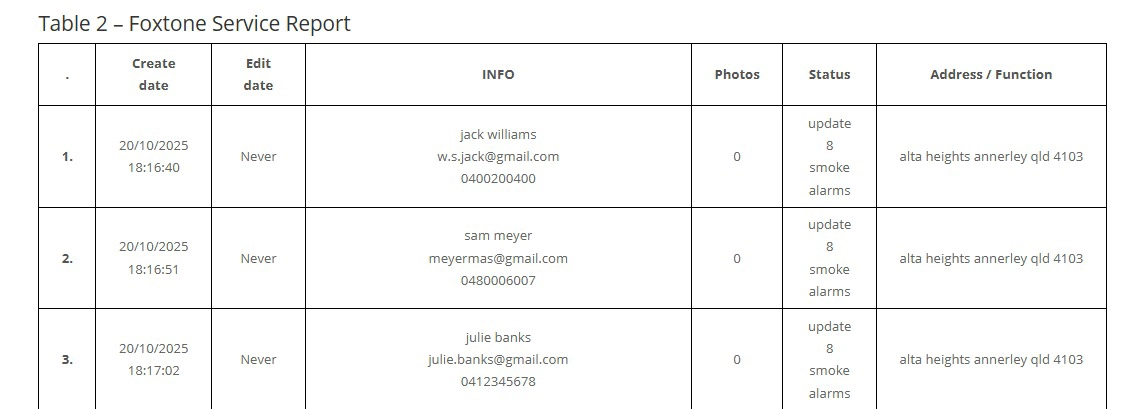
This ensures both agents and the Foxtone team have an accurate, transparent, and up-to-date record of all job activities. All updates made by the service team will be visible in your dashboard once completed.
That’s it! You’ve successfully learned how to book, register, and update your job details.
If you encounter any issues or need assistance, please contact us at 1300 58 2288 — our team will be happy to help.
